Managing Clusters
A cluster is a group of Pickpad devices that act as a single unit. When an order is assigned to a cluster, it appears simultaneously on all devices in the group. This is useful for large or complex orders that need more than one Pickpad.
Cluster types
| Type | How it behaves |
|---|---|
| Static | The classic setup: a fixed set of physical Pickpads, selected by category trigger rules. |
| Dynamic | Also a fixed set of physical pads, but it only "activates" as a group while it's carrying an order — outside of that, its pads can be considered individually. |
| Virtual | Has no physical pads at all. An order can be assigned to a virtual cluster on its own, useful for orders you want to track and distribute together without needing dedicated devices. Virtual-cluster orders show up in the orders queue view, since they're waiting to be handled the same way a queued order is. |
Creating a cluster
Go to Clusters in the dashboard and click Add cluster.
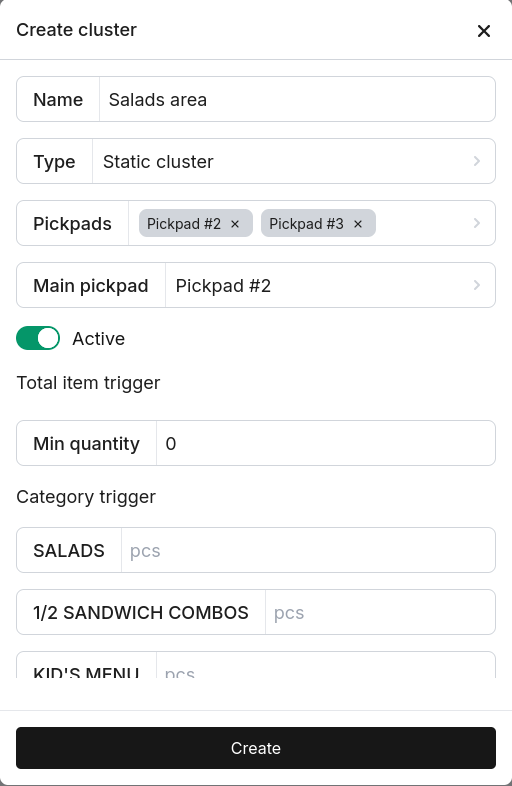
Fields:
| Field | Description |
|---|---|
| Name | A label for this cluster, e.g. "Salads" |
| Type | Static, Dynamic, or Virtual — see Cluster types above. |
| Pickpads | The devices that form this cluster. Only devices already assigned to a station and not currently in another cluster are available. Not needed for Virtual clusters. |
| Main pickpad | The primary device in the cluster. Orders are routed to the cluster via this device. Must be one of the selected Pickpads. |
| Active | Whether this cluster is available for order distribution. |
| Category trigger | How many items from each category must be in an order for this cluster to be selected. Leave a category blank to ignore it. See Distribution Rules for details. |
| Item count trigger | An alternative to category triggers: how many items total (regardless of category) must be in an order for this cluster to be selected. See Distribution Rules for details. |
note
Pickpad assignments cannot be changed after a cluster is created. To reassign devices, delete the cluster and create a new one.
Editing a cluster
Click the edit icon next to any cluster in the list. You can update the name, active status, and category triggers. Device assignments are locked after creation.
Deleting a cluster
Click the trash icon next to a cluster. The devices are released and become individually available for distribution again.