Network Configuration
Your Pickpad needs to be on your Wi-Fi network before it can start receiving orders. Here's how to get it connected.
Step 1 — Enter Linking Mode
Press the left button on the Pickpad. The display will show "Linking".
Give it about 10 seconds — a Wi-Fi network named "Pickpad" will show up on your phone or computer.
Step 2 — Connect to the Pickpad Hotspot
Join that Pickpad Wi-Fi network from your phone or computer, just like connecting to any other network.
Step 3 — Open the Configuration Page
Once you're connected to the Pickpad hotspot, open a browser and go to:
http://192.168.1.1
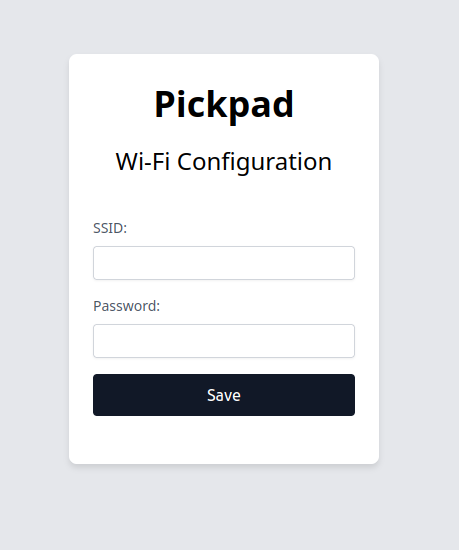
This opens the Wi-Fi configuration page. Enter your network name (SSID) and password, then save.
Step 4 — Confirm Connection
After you save, the Pickpad will try to connect to your Wi-Fi. Watch the device display — it will show a success message once it's online.
Step 5 — Add to a Station
The last step is assigning the device to a station in your account.
If you got here from the Pickpad dashboard's setup link, just click Add to Station and you're done. No setup link handy? Ask your administrator for the Pickpad ID and add it manually from the Stations page.