OLO Setup
Pickpad connects to OLO through a self-service webhook — no OAuth. You register Pickpad's webhook URL in OLO's dashboard and pick which order events to send.
1. Select order source
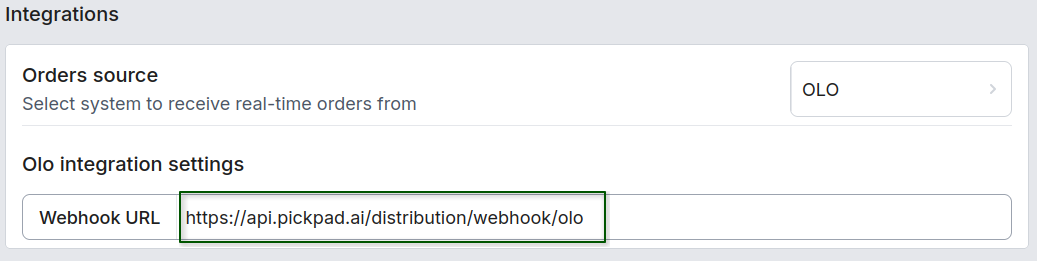
In the Pickpad Dashboard, go to Settings and set Orders source to OLO. An Olo integration settings section appears with the webhook URL.
2. Configure the webhook in OLO
Follow OLO's Self-Service Webhooks guide, and enter:
-
Webhook URL — copy the URL shown in the Pickpad Dashboard:
https://api.pickpad.ai/distribution/webhook/olo -
Developer partner name —
Pickpad. -
OAuth — leave disabled; the webhook does not require OAuth.
3. Select events
Subscribe to all order events:
- External Order Event
- Order Canceled
- Order Placed
- Scheduled Order Fire
- Order Adjusted
- Order Closed
- Scheduled Order Failed
- Dispatch Status Update
Save the webhook in OLO once configured. Pickpad will start receiving orders automatically.