SumUp Setup
Pickpad connects to SumUp through GoodTill, the POS platform behind SumUp's till system. Connect your credentials and configure a webhook, and Pickpad will start receiving orders automatically.
1. Select order source
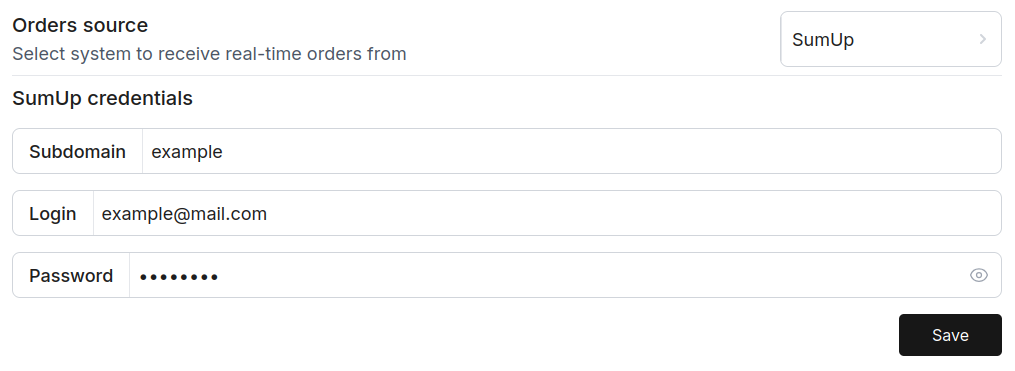
In the Pickpad Dashboard, go to Settings and set Orders source to SumUp.
A SumUp credentials section will appear with Subdomain, Login, and Password fields.
2. Enter your GoodTill credentials
Fill in:
- Subdomain — your GoodTill subdomain (the part before
.thegoodtill.comin your admin URL). - Login — your GoodTill account email.
- Password — your GoodTill account password.
Click Save. Pickpad verifies the credentials immediately and shows a success or error notification.
3. Configure the webhook in GoodTill
-
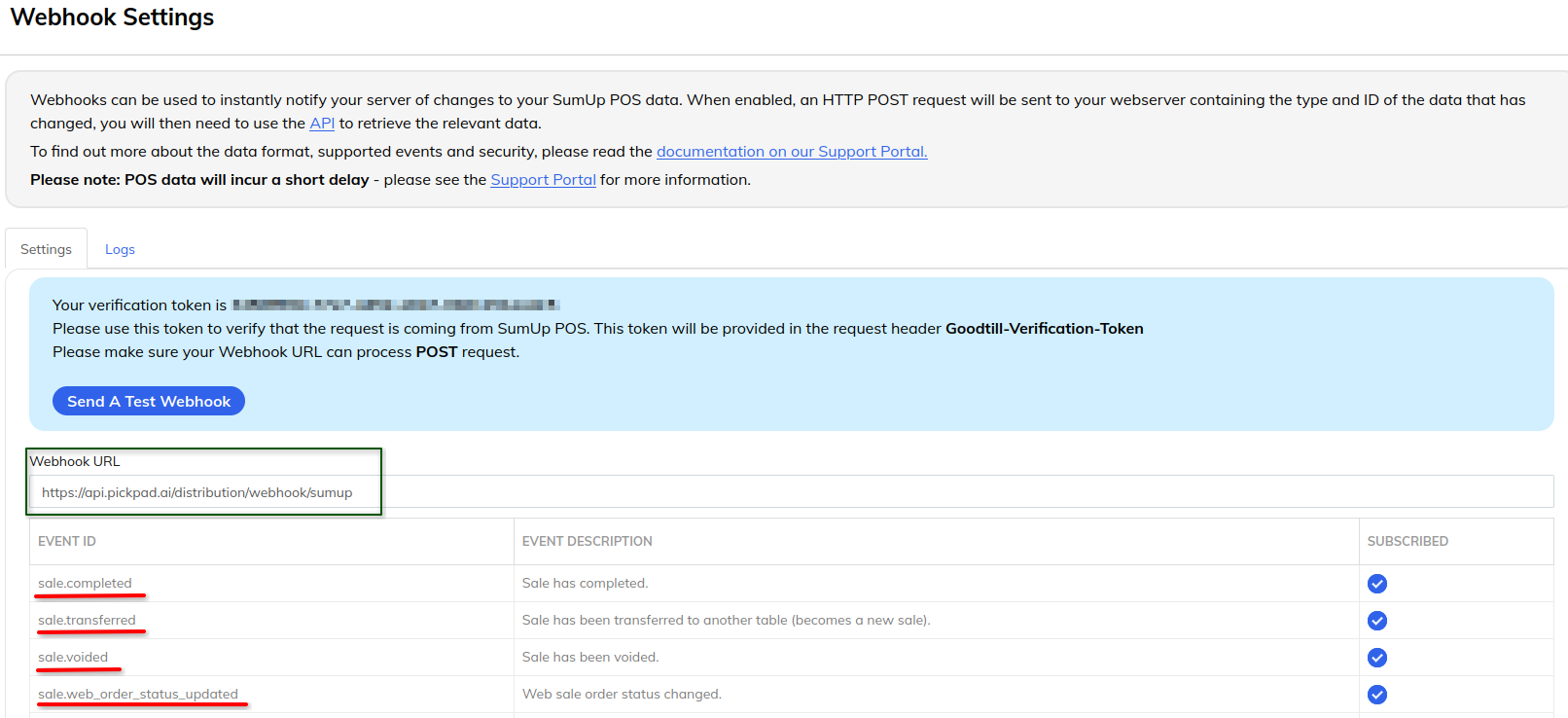
Log in to GoodTill as the store owner.
-
Under Webhook URL, enter:
https://api.pickpad.ai/distribution/webhook/sumup -
Make sure the following events are subscribed:
sale.completedsale.transferredsale.voidedsale.web_order_status_updated
-
Click Send A Test Webhook to verify the connection works.
4. Create stations
Go to Stations in the Pickpad Dashboard and create a station for each GoodTill outlet — this maps orders from that outlet to the right pads.