Toast Setup
Connect your Toast POS and Pickpad will start receiving orders to process.
Toast Integration Setup Instructions
For a full guide on adding and removing integrations in Toast Partner Connect, check out the official Toast documentation:
Adding or Removing an Integration with Toast Partner Connect →
1. Install Pickpad in Toast
- Open your Toast account and go to integration settings.
- Click Browse & purchase integrations.
- Search for Pickpad and open it.
- Select the locations you want to give Pickpad access to.
- Click Install.
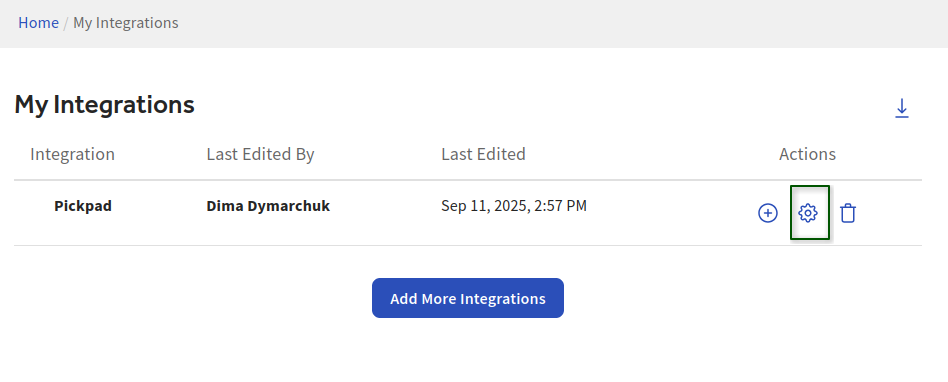
Once installed, Pickpad will show up in your My Integrations list.
2. Copy Group ID from Pickpad
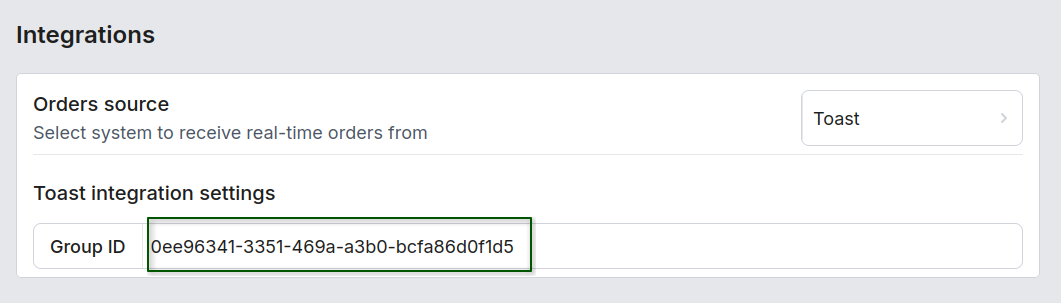
- In the Pickpad Dashboard, go to Settings.
- Set Orders source to Toast.
- A Toast integration settings section will appear with your Group ID — this is what ties your Toast locations to your Pickpad account. Copy it.
3. Configure Group ID in Toast
- Go back to Toast My Integrations and find Pickpad.
- Click the settings icon to open the integration settings.
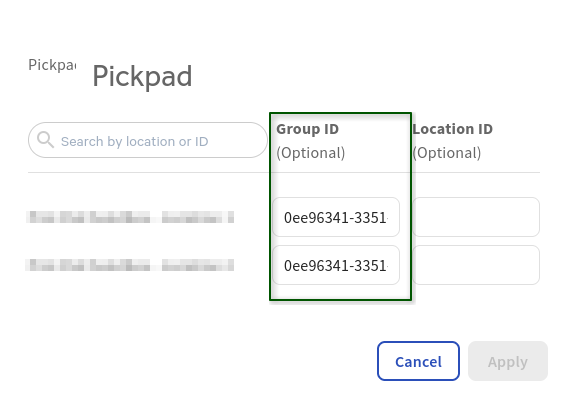
- Paste the Group ID you copied into the Group ID field for every location that should send orders to Pickpad.
- Click Apply.
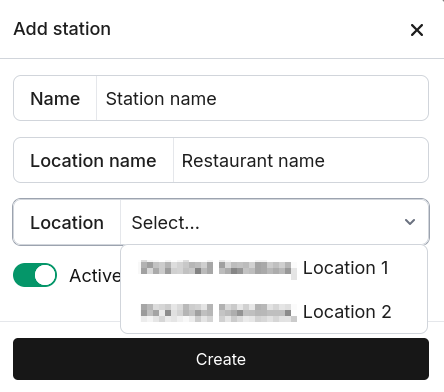
4. Create stations
Go to Stations in the Pickpad Dashboard and create a station for each Toast location you just configured. Pick a location from the dropdown and click Create.